To enhance the security and accessibility of payslips, HReasily allows you to enable payslip notifications and password protection either individually or in bulk. Follow the steps below based on your preferred method.
Enable Payslip Settings for Individual Employees
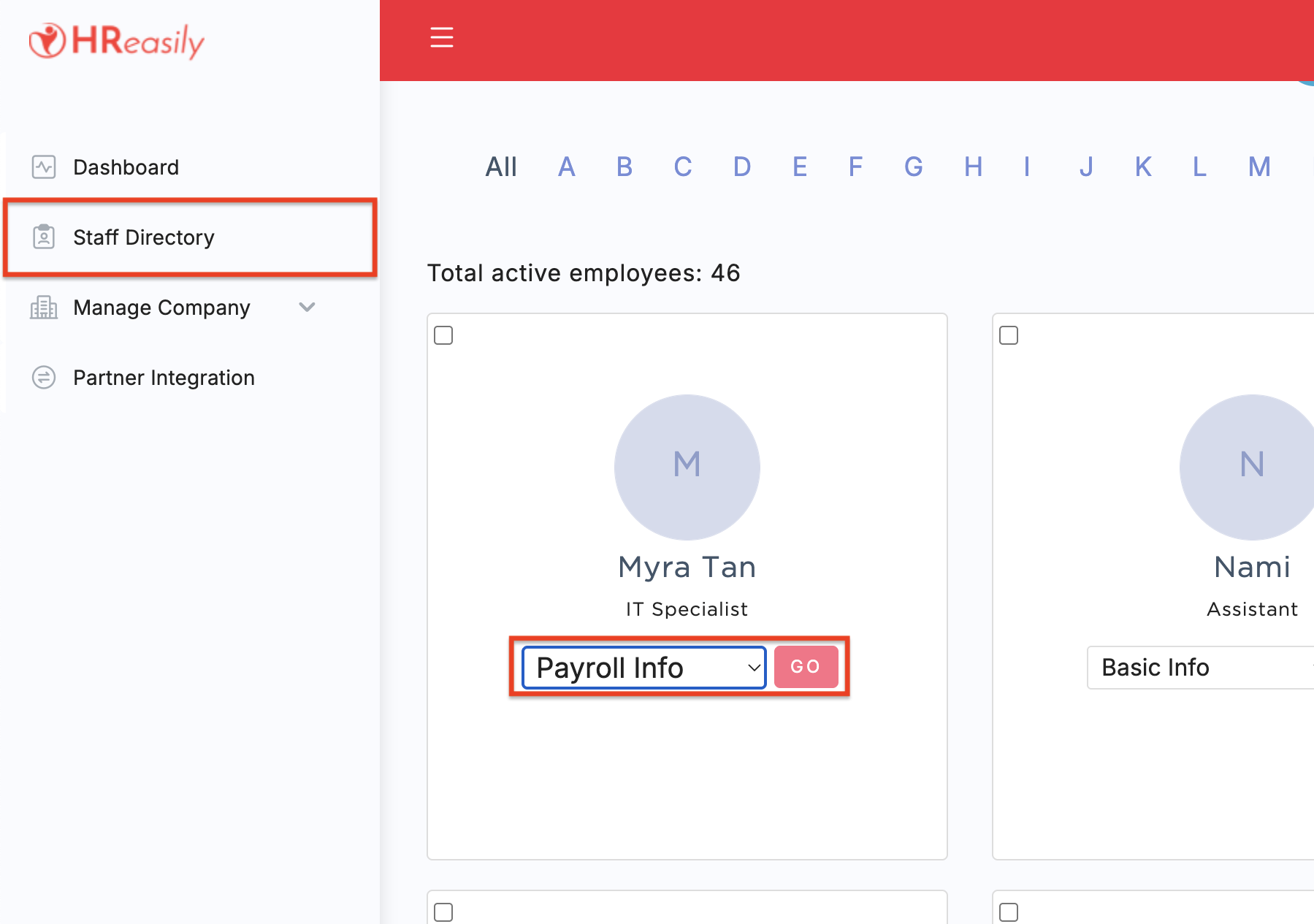
1. Go to Staff Directory. Locate the employee, open the dropdown menu, select Payroll Info, and click Go.
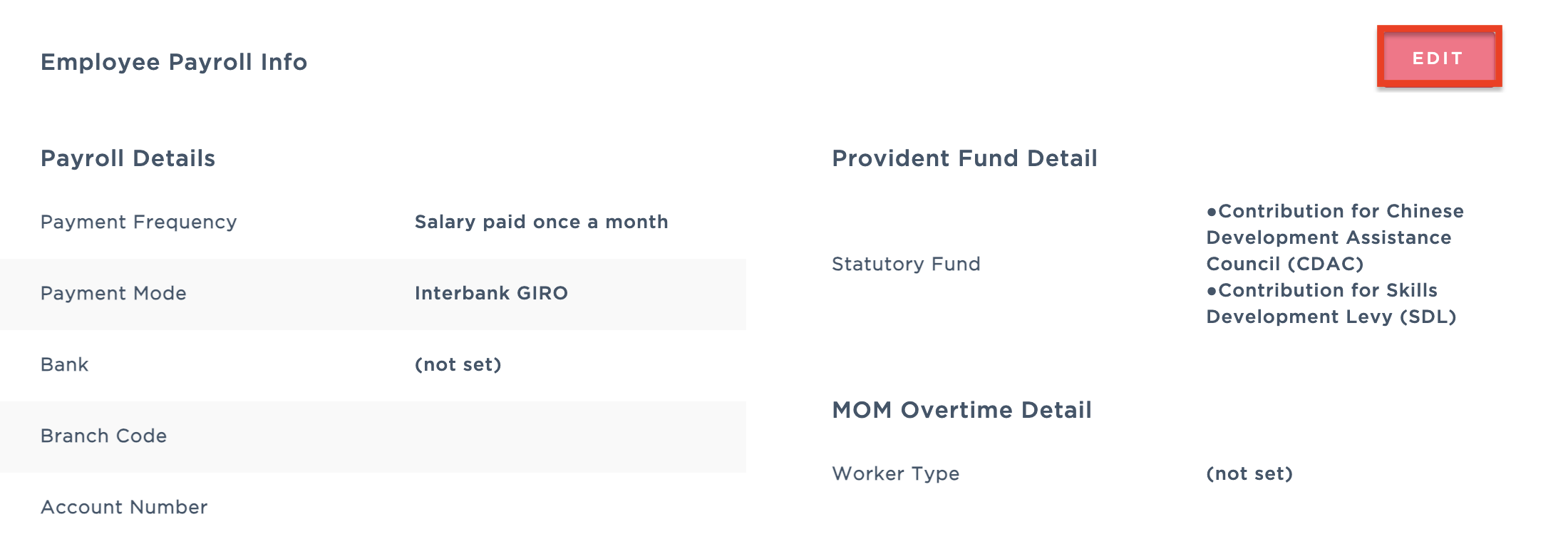
3. Scroll down to Employee Payroll Info and click EDIT.
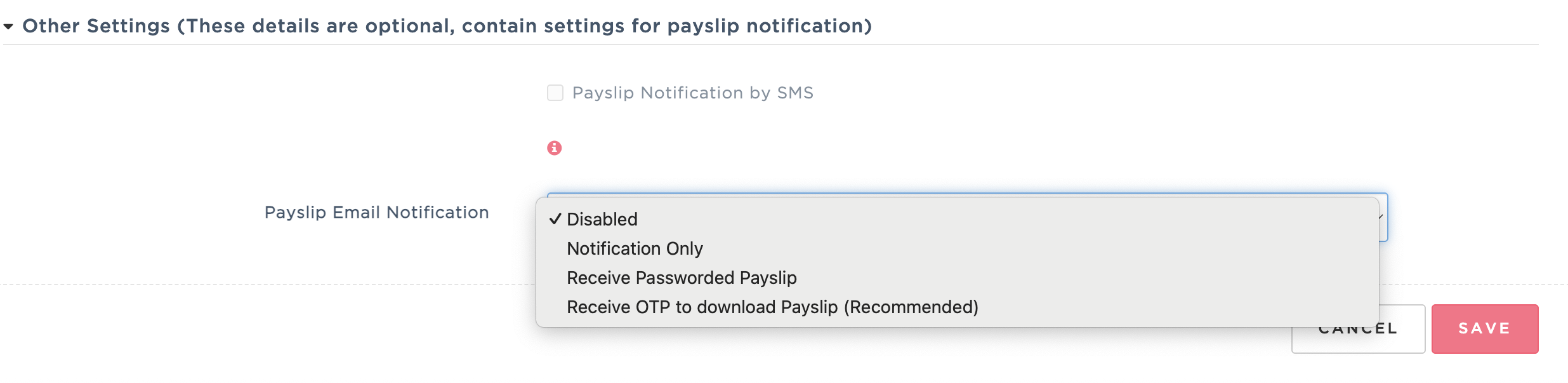
4. Scroll to the Other Settings section. Under Payslip Email Notification, select your preferred option:
Notification Only: Sends an email notification when payroll is approved. Employees will need to log in to view their payslip.
Receive Passworded Payslip: Sends a password-protected PDF of the payslip via email upon payroll approval.
No login required.
- The password must be manually created and cannot be based on the employee's National ID or date of birth. If it is empty, payslip will not use any password.
- Receive OTP to download Payslip: Sends a secure download link via email. Employees must verify their identity using a one-time password (OTP) sent to their registered email address. For more details, refer to this guide.
5. Click Save to apply the changes.
Bulk Update Payslip Settings for Multiple Employees
1. Go to Staff Directory > MANAGE EMPLOYEES.

2. Select Edit Other Settings.

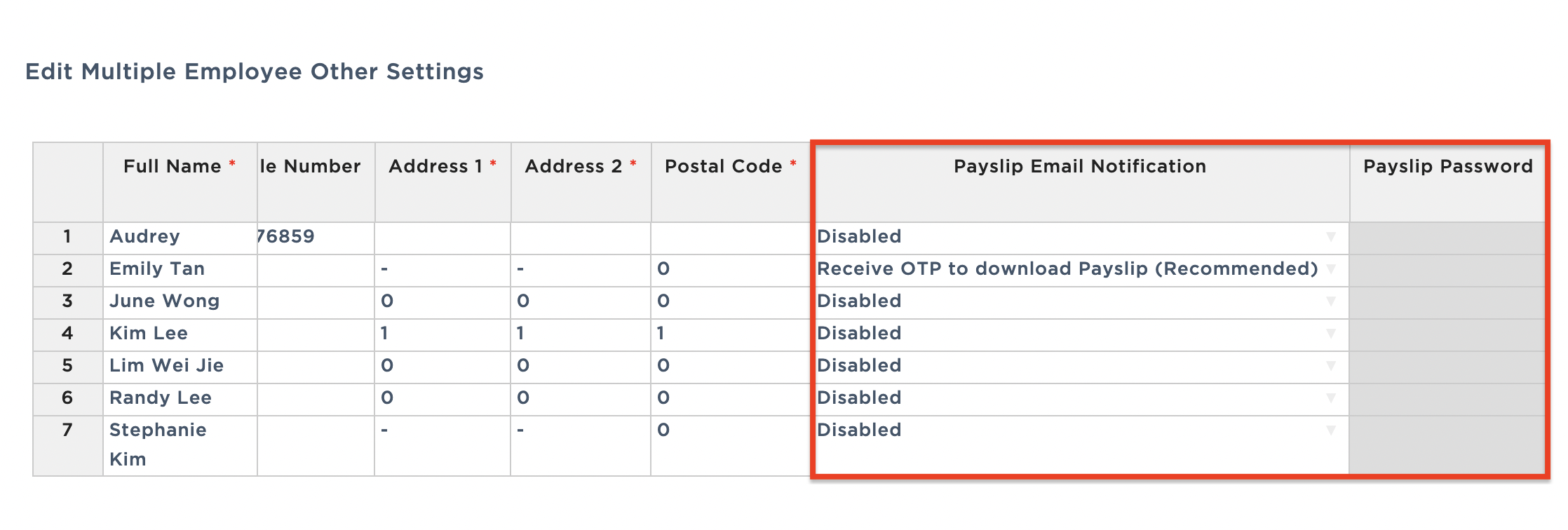
3. In the table view, you can:
Enable payslip email notifications
Set custom payslip passwords for all employees
Was this article helpful?
That’s Great!
Thank you for your feedback
Sorry! We couldn't be helpful
Thank you for your feedback
Feedback sent
We appreciate your effort and will try to fix the article