Follow the steps below to upload the generated GIRO file to the ANZ Cash Asia portal.
1. Navigate to Payments > Payments (left panel) > Payment File Upload.
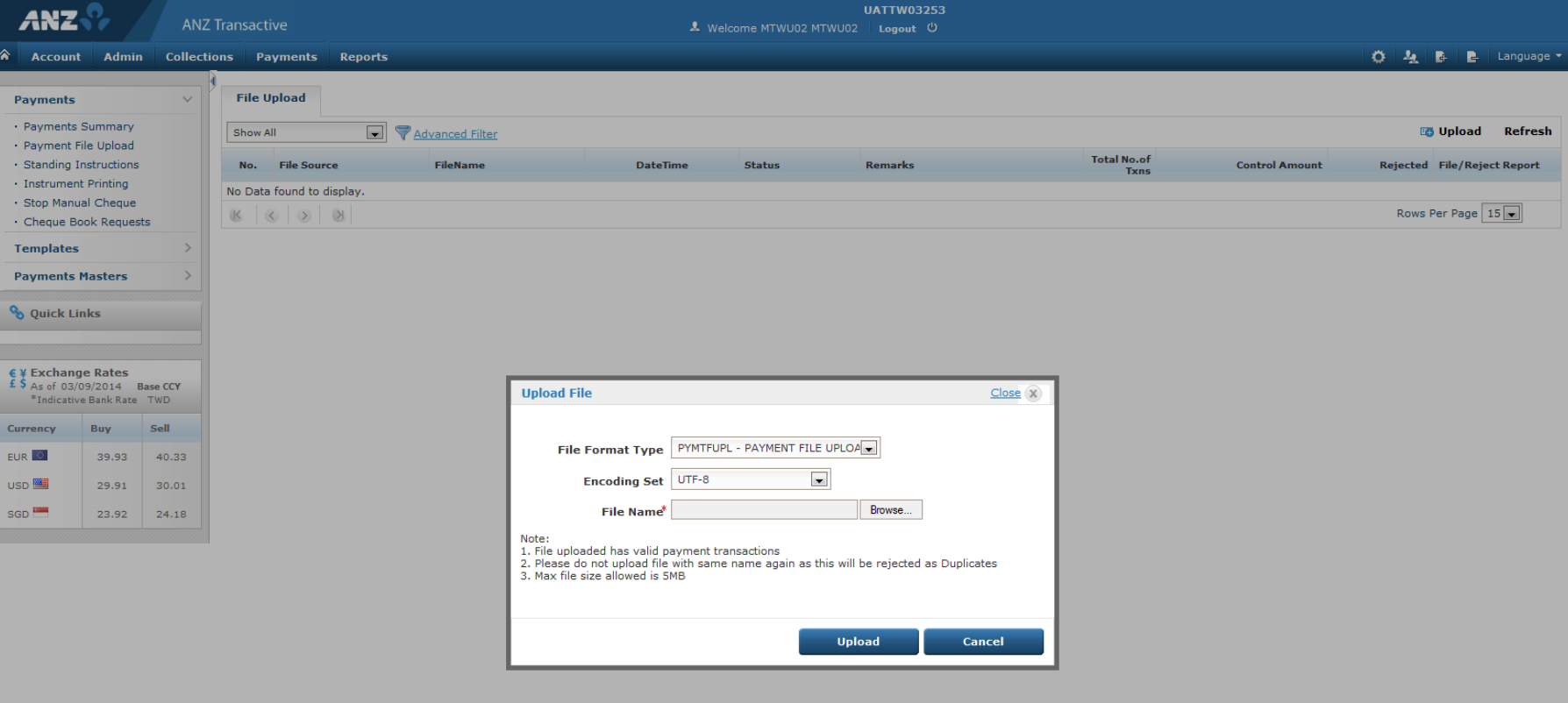
2. On the File Upload page, click Upload to open the file upload window.
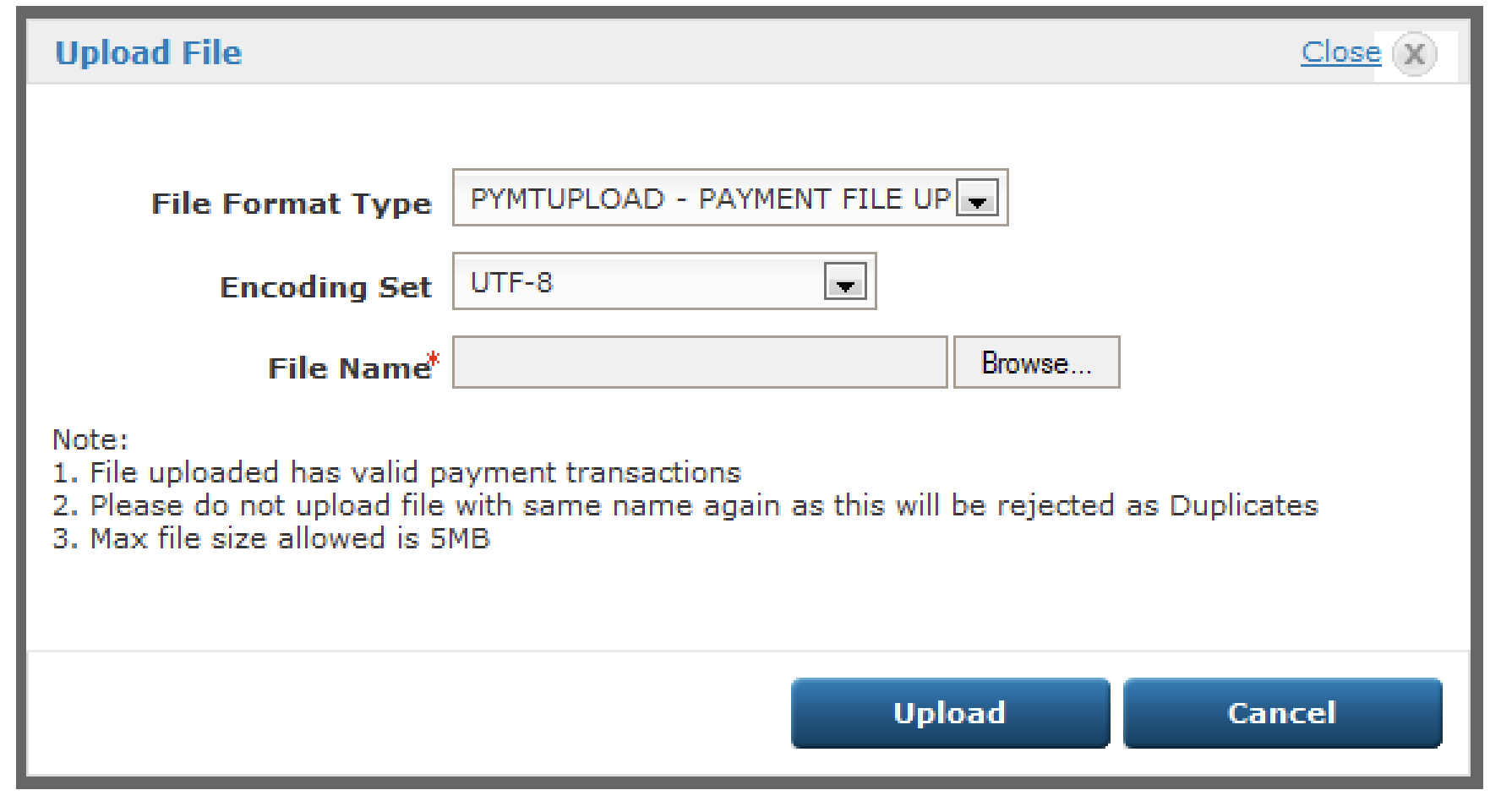
3. Configure the required upload settings:
- File Format Type: Select the appropriate file format from the drop-down list.
- Encoding Set: The default encoding is UTF-8. If your file uses a different encoding, select the corresponding option.
- File Name: Click Browse to locate and select the GIRO file from your computer.
- Ensure the file name does not contain special characters.
- The maximum file name length is 39 characters, including the file extension.
4. Click Upload to begin uploading the file. During the upload process, ANZ Cash Asia validates both the file structure and transaction data.
- Transactions that pass validation are successfully uploaded and will be available in the relevant Batch, Deposit, or Instrument summary screens.
- Transactions that fail validation are moved to Reject Repair for review. If the errors cannot be corrected, the upload will be aborted.
- A Reject Report is available from the File Upload Summary page for any failed validations.
5. If the upload is successful, the system displays the message File Uploaded Successfully. Alternatively, click Cancel if you do not wish to proceed with the upload.
Was this article helpful?
That’s Great!
Thank you for your feedback
Sorry! We couldn't be helpful
Thank you for your feedback
Feedback sent
We appreciate your effort and will try to fix the article