If you need to deduct leave entitlement for multiple employees at once, you can use the Assign to Multiple Employee function under Leave Types. This allows you to apply the same leave adjustment to multiple employees without having to update each employee individually.
Follow the steps below to deduct leave entitlement in bulk:
1. Navigate to Manage Company > Leave > Leave Types.
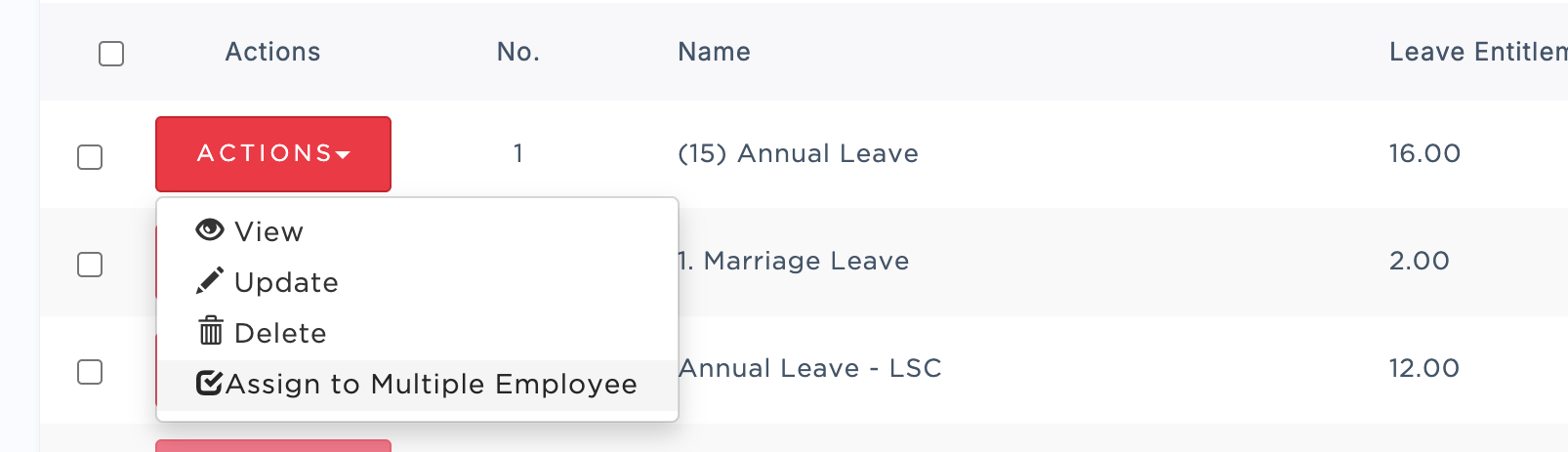
2. Click Actions next to the leave type you want to deduct from, then select Assign to Multiple Employee.
3. Select the employee(s) whose leave entitlement you want to deduct.
4. Enter the total number of leave days you want to deduct. For example, if you want to deduct 5 days of leave, enter -5 as the amount.
Note: Enter the leave adjustment as a negative value to deduct leave entitlement.
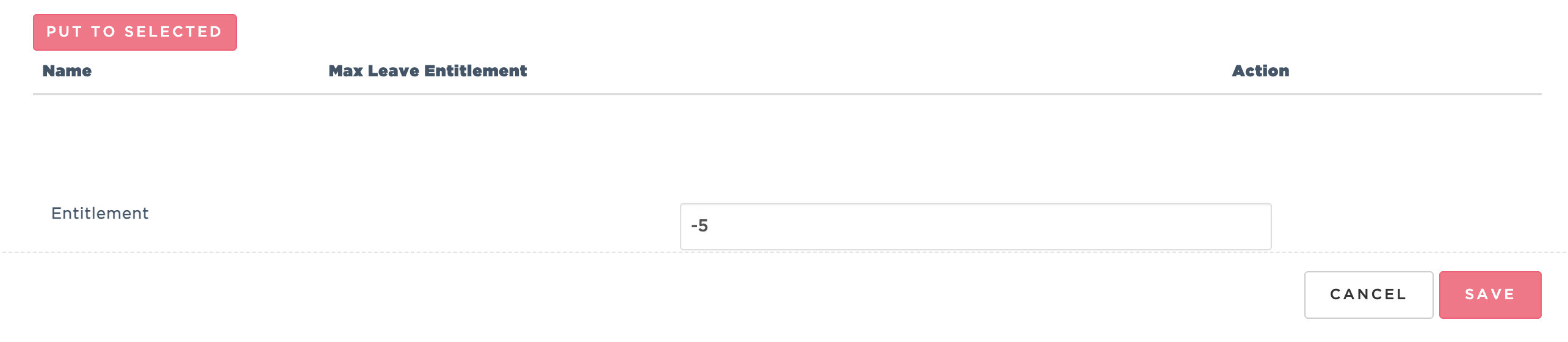
5. Click PUT TO SELECTED. The leave entitlement breakdown for the selected employees will be displayed for your review.
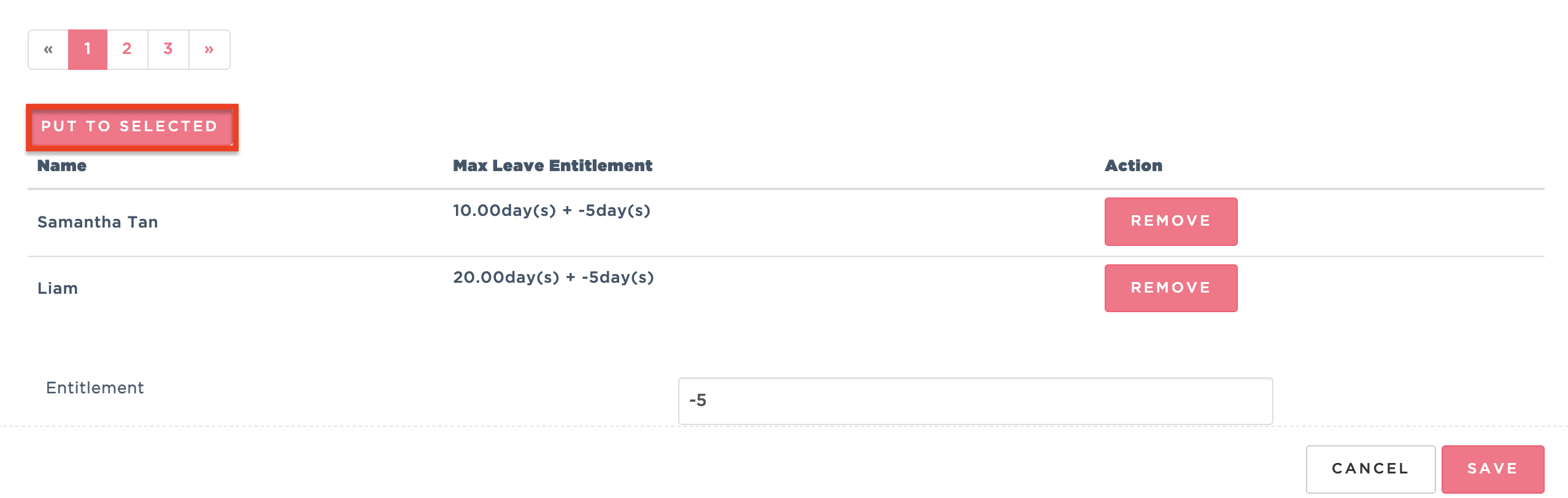
6. Once you have confirmed the leave deduction, click Save. The deducted leave entitlement will then be reflected in the employees' leave balances.

Was this article helpful?
That’s Great!
Thank you for your feedback
Sorry! We couldn't be helpful
Thank you for your feedback
Feedback sent
We appreciate your effort and will try to fix the article